Distraction
The best app blockers: choosing friction that actually works
A buyer's guide to the best app blockers, sorted by how hard they are to bypass. Who each suits, how people get around them, and what stops doomscrolling.
Say it's 2:15 PM on a Tuesday. You sit down to draft a document, open your browser for one reference link, and glance at your phone. Forty-five minutes later you've read twenty forum threads about espresso grinders, watched a dozen carpentry clips, and lost your opening sentence.
So you search for the best app blockers, install whatever ranks first, and set a four-hour limit on everything. Within three days you've tapped through your own passcode or deleted the app.
That's not a discipline problem. It's a mismatch. A polite pop-up won't stop a tired brain from scrolling. A tool that locks down your whole laptop will make you panic when you need a work file.
Why do app blockers fail?
In 2019, Ulrik Lyngs and colleagues at the University of Oxford and elsewhere analyzed 367 apps and browser extensions for digital self-control, published at the ACM CHI conference. They found tools doing very different jobs: tracking time, blocking access, adding rewards or punishments, and more.
When a blocker fails, it usually fails at the override point.
Two systems drive your behavior: fast, automatic habit and slower, deliberate thinking. Reaching for your phone when a task gets tedious is habit. If the override button takes two seconds, your habit taps it before your deliberate side wakes up.
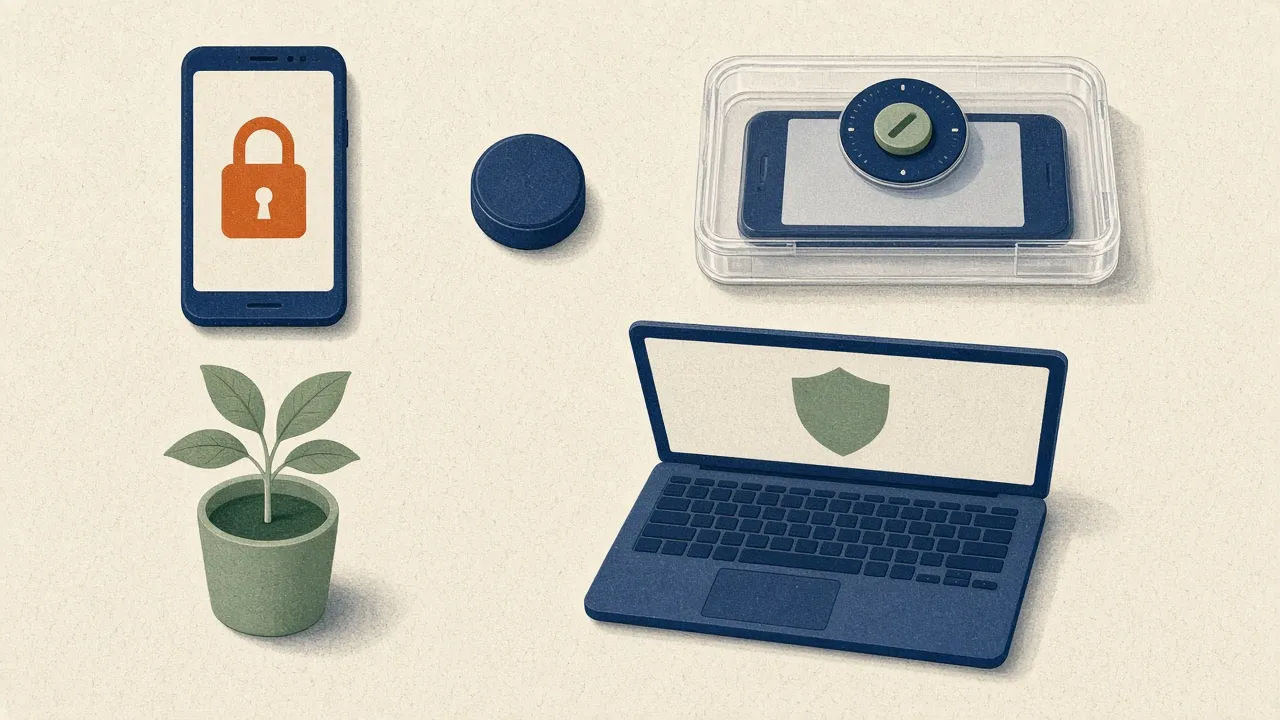
So judge blockers by friction level, not star ratings. From lowest to highest:
- Built-in limits (easy to ignore)
- Soft nudges (a speed bump that makes you pause)
- Scheduled multi-device blockers
- Locked desktop blockers
- Gamified stakes (a small emotional cost)
- Physical barriers (you have to move your body)
Built-in tools: Apple Screen Time and Android Digital Wellbeing
Every modern phone has some blocking built in. On iOS, go to Settings > Screen Time > App Limits (and Downtime). You can cap categories like Social or single apps. On Android, Settings > Digital Wellbeing has App Timers and Focus Mode, which pauses chosen apps and silences their notifications.
Who it suits: People who mostly just lose track of time. If you want to close the news after half an hour and need a clock to tell you, the built-in tools are enough and cost nothing.
How it can be bypassed: Easily. When an iOS limit hits, "Ignore Limit for Today" is two taps away. Android timers can generally be switched off from the same settings screen. That's why these rarely help with compulsive scrolling.
Pricing: Free, included with the phone.
Soft nudges: one sec
Instead of blocking an app, one sec puts a pause in front of it. Open Instagram or TikTok and you get a short deliberation screen first, with the option to back out.
A 2023 study in PNAS by David Grüning, Frederik Riedel and Philipp Lorenz-Spreen followed 280 participants for six weeks. The authors report that one sec reduced actual app openings by 57% after six weeks. It was a field experiment on people who chose to install the app, so it doesn't tell you what happens when someone is made to use it. In a separate online experiment, the option to dismiss the attempt had the biggest effect, and the deliberation message on its own wasn't effective.
Who it suits: People whose problem is muscle memory. If your thumb opens the feed before you've decided anything, a forced pause gives you a moment to choose.
How it can be bypassed: Wait out the pause and tap through. If you're determined, it won't stop you. It's a speed bump, not a wall, though one sec also offers stricter blocking options.
Pricing: The essentials are free. A paid plan adds more features and works across your devices on one account.
Scheduled blockers: Opal and Freedom
If you want software to close the doors during work hours, a scheduled blocker is the next step.
Opal
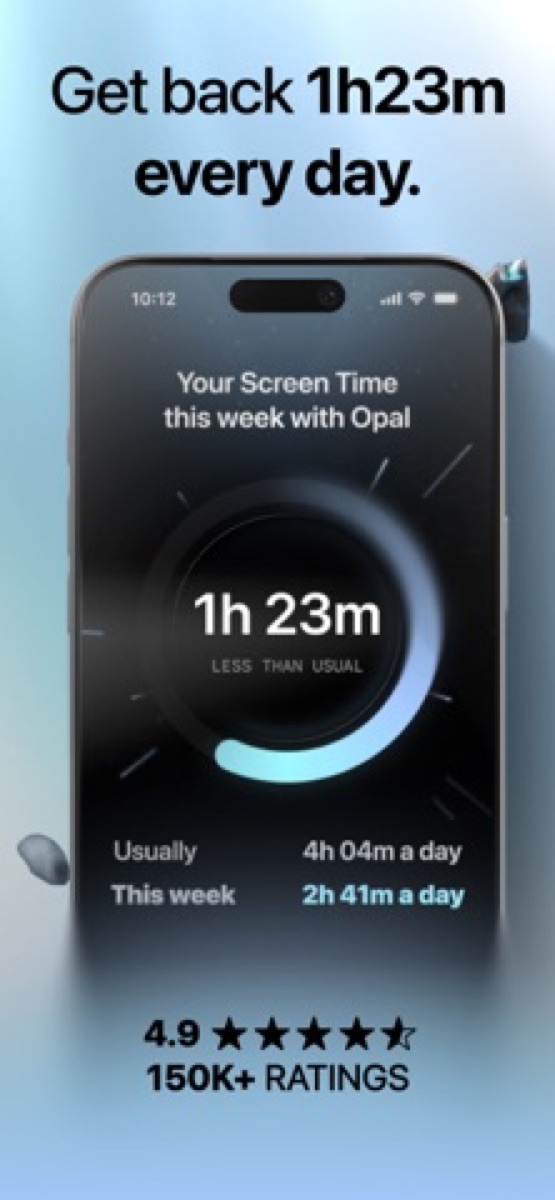
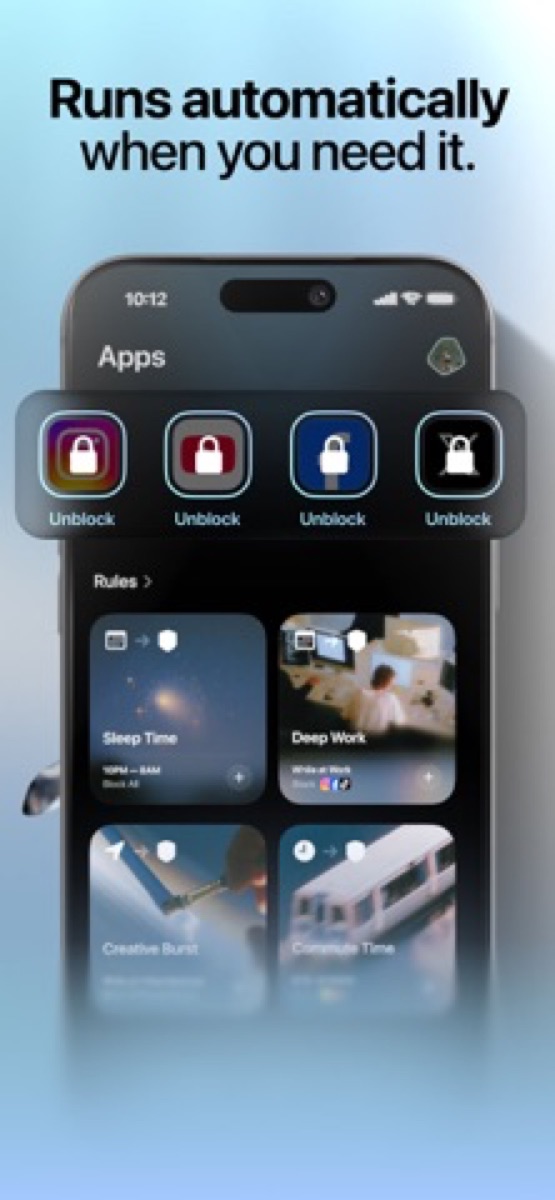
Opal runs on iPhone, Mac and Android, and lets you block apps and sites on a schedule or start a focus session and lock in until the timer ends. It also gives you a daily Opal Score based on sleep, focus and rest signals.
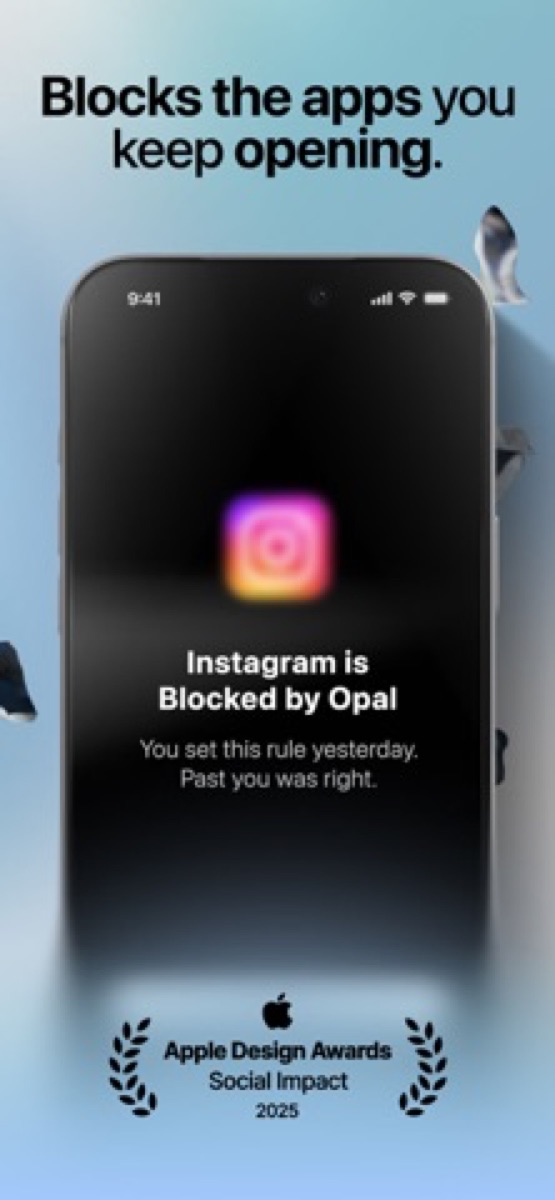
Its standout feature is Hard Mode, which Opal describes as no way out: you can't turn it off during a session. That's the difference between a nudge and a commitment, and it's why Opal suits people who tap past ordinary limits.
-
Opal
Opal OS
Scheduled app and site blocks that are harder to tap past than built-in Screen Time.
Opal
Opal OS
Scheduled app and site blocks that are harder to tap past than built-in Screen Time.
Who it suits: iPhone and Mac users who check their phone compulsively during the workday and want scheduled routines, like social media blocked from 9:00 AM to 5:00 PM.
How it can be bypassed: Outside Hard Mode, easily. In Hard Mode, Opal says there's no way out until the session ends. Pick it knowing that includes the times you'd regret being locked in.
Pricing: Opal sells a paid Pro tier. Its site lists Hard Mode and unlimited rules among its features, so check what's free and what isn't before you commit.
Freedom
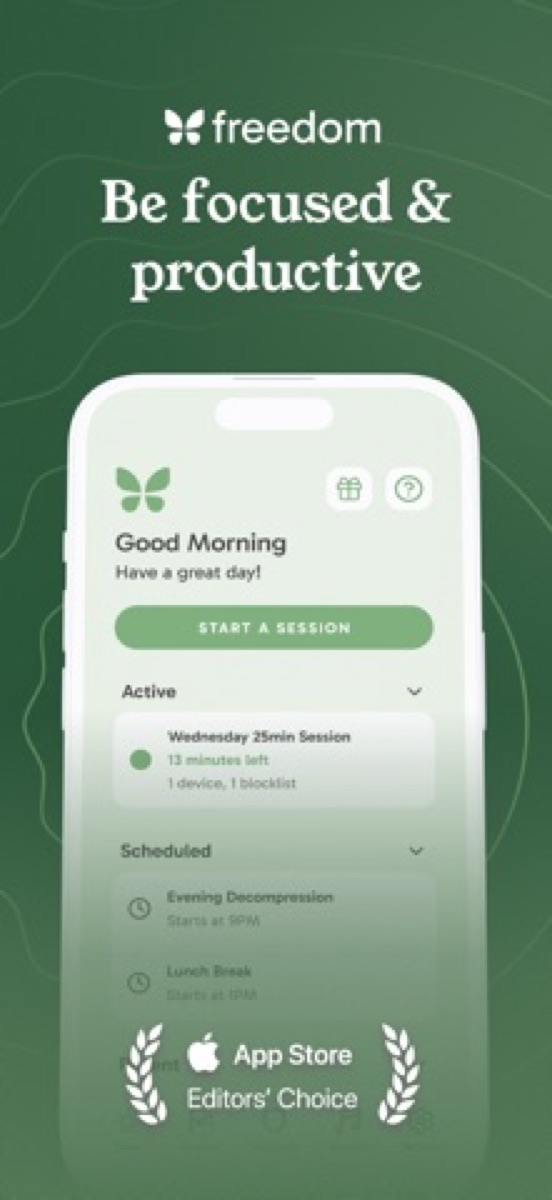
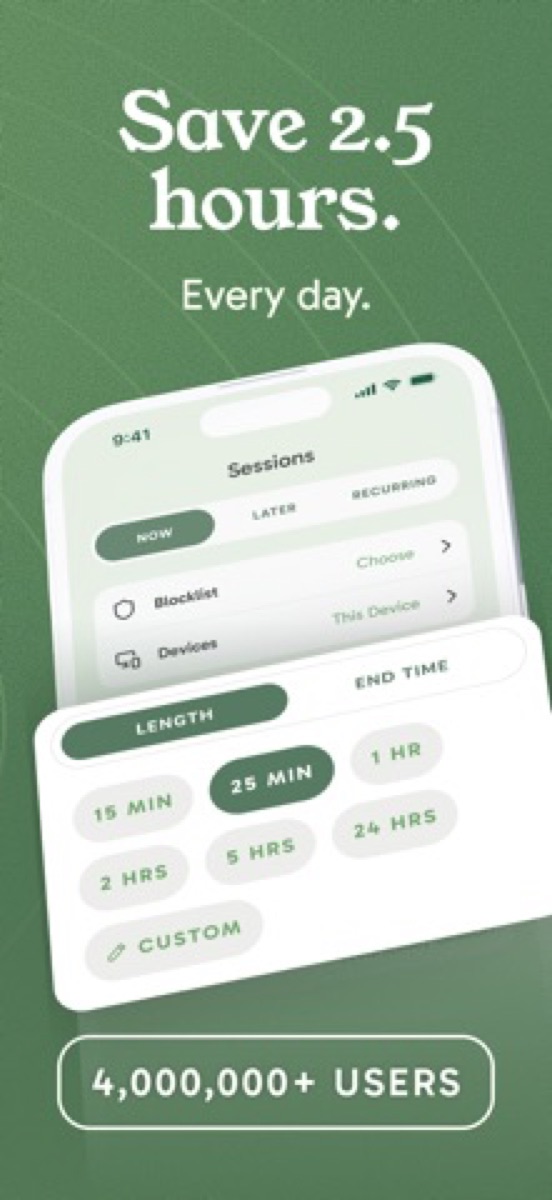
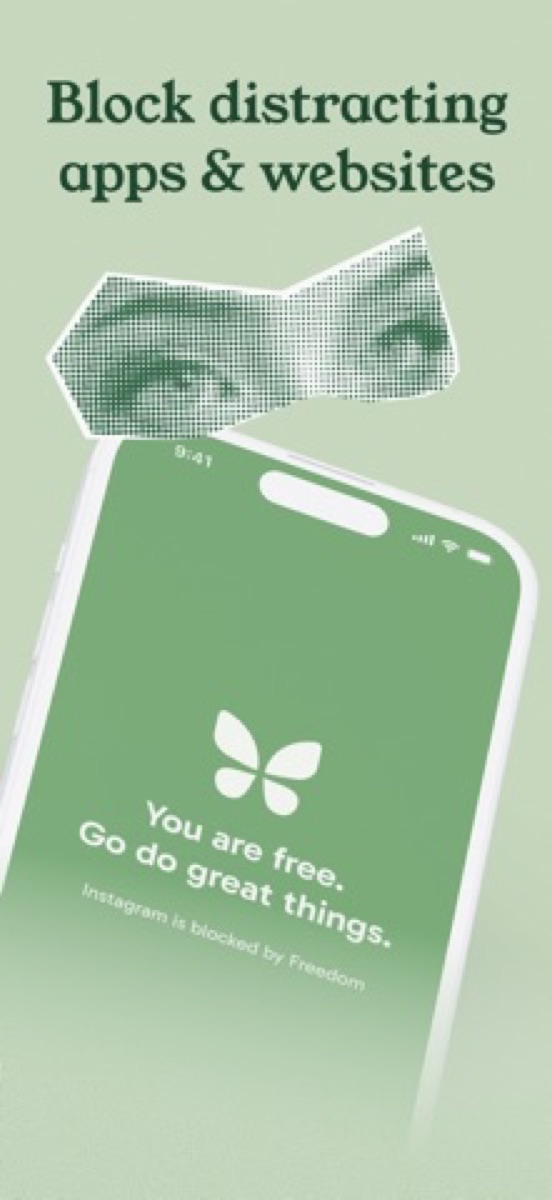
Freedom covers Mac, Windows, iOS, Android and Chromebook, and its pitch is coordination. Start a session on your laptop and the same apps and sites are blocked on your phone and tablet, so you can't close a distracting tab and pick up your phone ten seconds later.
Locked Mode prevents you from quitting the session before it ends, and scheduling and recurring sessions are part of Premium.
-
Freedom
Freedom.to
One blocklist across Mac, Windows, phone, and browser—start a session and the same sites stay off everywhere.
Freedom
Freedom.to
One blocklist across Mac, Windows, phone, and browser—start a session and the same sites stay off everywhere.
Who it suits: Writers and knowledge workers who bounce between computer and phone and want one switch for both.
How it can be bypassed: In a regular session you can end it yourself. In Locked Mode, the app is built to stop you quitting early, so the real escape is waiting out the timer.
Pricing: Freedom has a free plan with cross-device blocking, and a 7-day trial of Premium. Premium was $3.33 a month on the annual plan or $8.99 monthly when we checked. There's also a lifetime "Forever" option, listed at $99.50 on sale (normally $199).
Locked desktop blocker: Cold Turkey Blocker
On a Windows or Mac computer, Cold Turkey Blocker is the strictest option here. It doesn't run on phones.
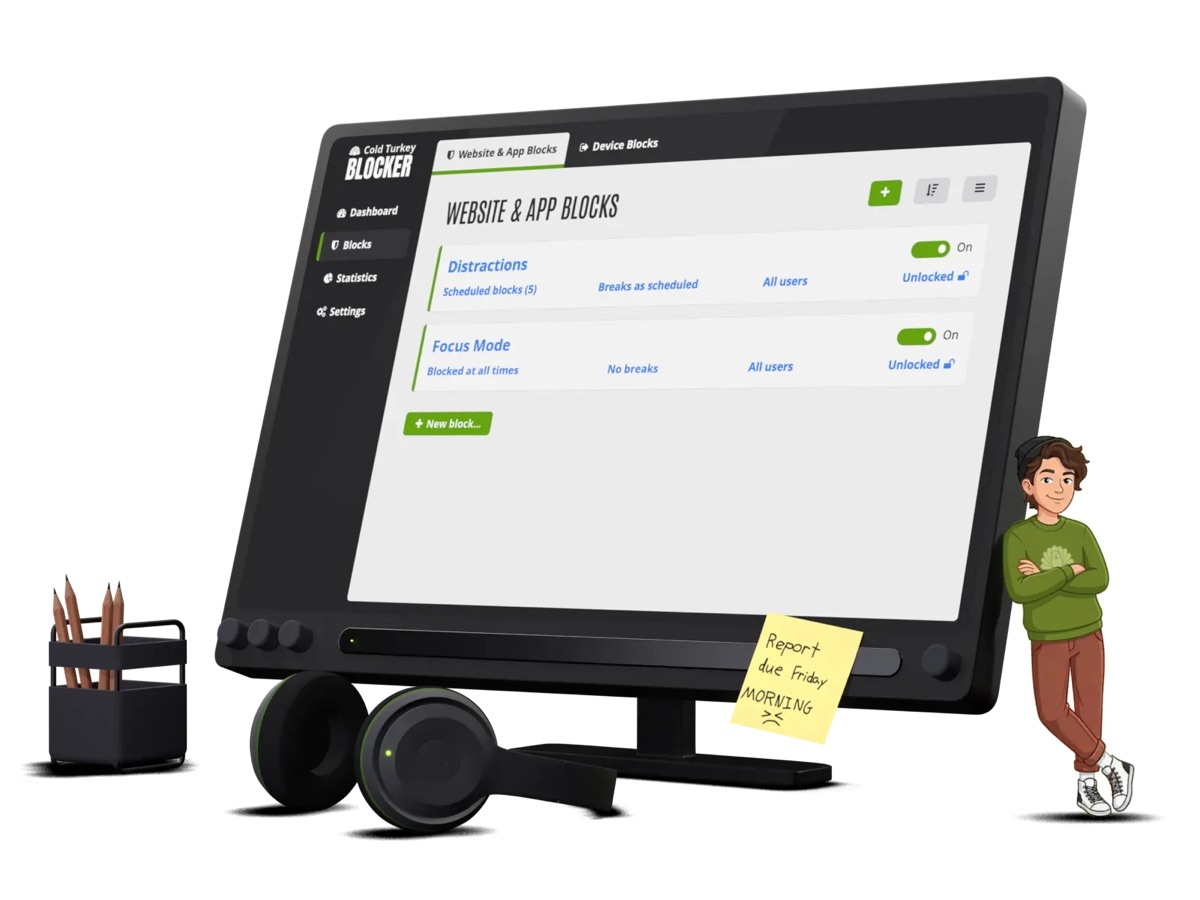
You can block websites, apps, keyword searches or the entire internet, and you can even block your computer. Once you lock a block in place, the maker says it's almost impossible to stop and that you can't just uninstall it.
-
Cold Turkey Blocker
Fortitude Software
Locks your desktop blocklist until the timer ends, so there is nothing to negotiate.

Cold Turkey Blocker
Fortitude Software
Locks your desktop blocklist until the timer ends, so there is nothing to negotiate.
Who it suits: Computer workers and students with a thesis to finish, who know they'll hunt for loopholes the moment the work gets hard.
How it can be bypassed: Cold Turkey describes its locks as very hard to get around, so don't count on a loophole. One built-in escape hatch is "Pause for a Cause," which lets you donate to the World Wildlife Fund to pause your blocks. The maker says it can be disabled.
Pricing: Blocker Free covers website blocking and timed blocks, with a 7-day trial of Pro features. Blocker Pro is a one-time purchase with lifetime updates, covering all the computers you personally use.
Gamified friction: Forest
Not all friction has to feel like punishment. Forest, from Seekrtech, uses loss aversion.
You start a focus timer and plant a virtual tree. It grows while you stay in the app. Leave to use something else and the tree dies. With Deep Focus on, Forest blocks apps that aren't on your allowlist, and the only way into another app is tapping "Give Up," which kills your tree. Forest also supports group focus with friends and plants real trees through Trees for the Future.
Who it suits: Students and casual focusers who hate harsh restrictions. A growing tree is a gentle nudge.
How it can be bypassed: Tap "Give Up." You lose a tree. If your craving beats your attachment to a sapling, Forest won't hold the line.
Pricing: The core focus timer, Deep Focus and scheduled blocking are free. A paid Plus plan adds extras. Check the app for current details.
Physical blockers: Brick and kSafe
When software loses, distance wins. A 2017 study by Adrian Ward and colleagues in the Journal of the Association for Consumer Research reported that having your phone nearby, even off, cut available cognitive capacity. Treat that one carefully: later replications and a 2023 meta-analysis found the effect small or inconsistent. Our guide to studying without your phone covers what the evidence does and doesn't show. The practical case for putting it out of reach is stronger than the headline.
Brick
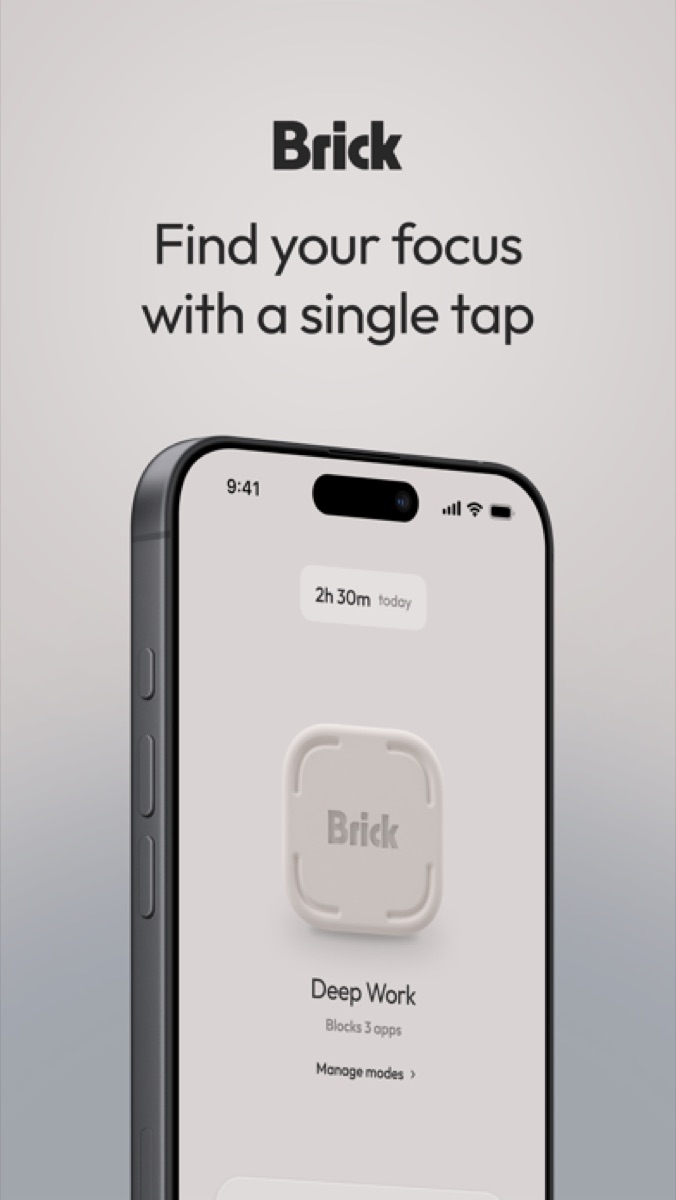
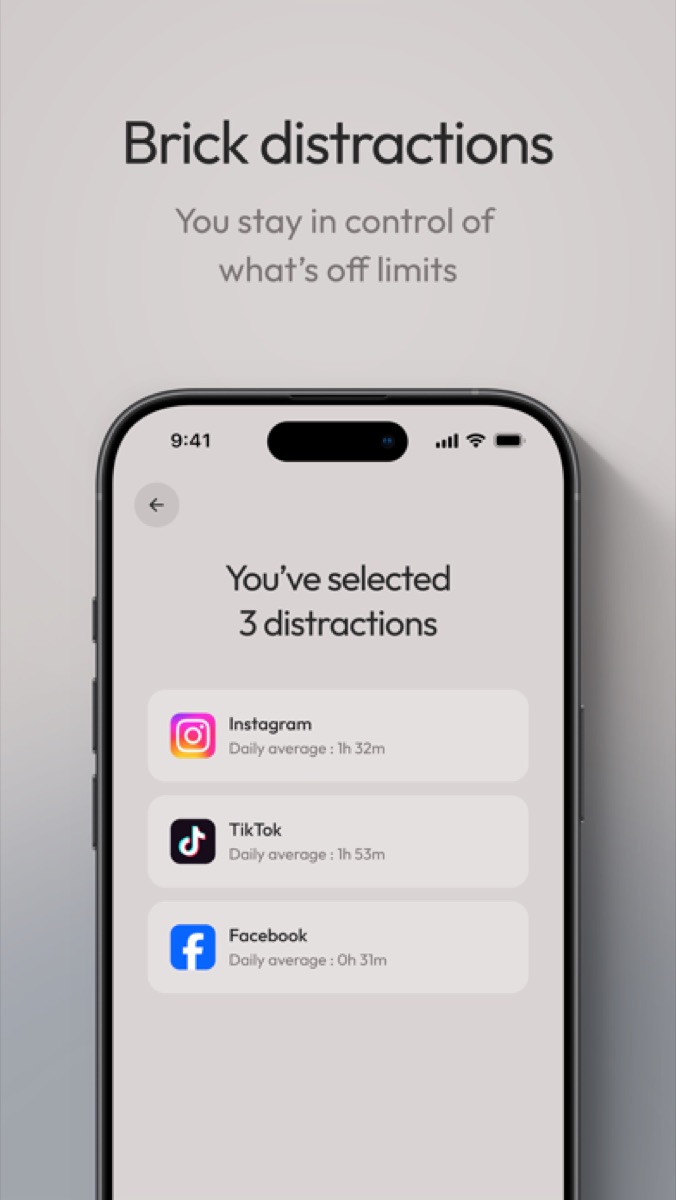
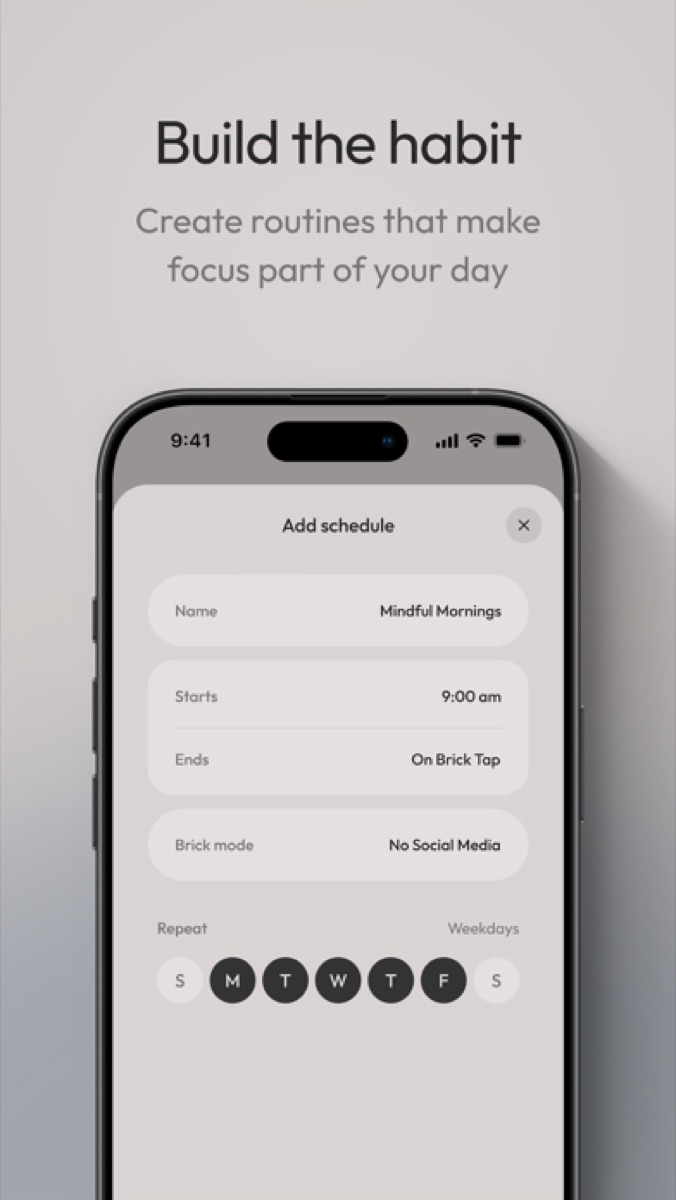
Brick is a small hardware puck with a companion app. You choose which apps to block (or choose only the apps to keep), tap your phone against the puck to start, and tap again to turn the block off.
The trick is that the puck has to be physically present to re-enable your apps. Leave it in another room and your apps stay locked until you walk back.
-

Brick
Brick LLC
Tap phone to the NFC puck to block chosen apps; unblocking means walking back to the puck.
Brick
Brick LLC
Tap phone to the NFC puck to block chosen apps; unblocking means walking back to the puck.
Who it suits: People who work away from home, parents who want phone-free evenings, and anyone who always overrides software limits.
How it can be bypassed: Brick includes five Emergency Unbricks for real emergencies, and a Strict Mode that locks settings and prevents deleting the app to end a session. If you leave the puck behind, you can't casually override it.
Pricing: You buy the puck up front, and Brick lists a 30-day money-back guarantee. Check getbrick.com for the current price.
kSafe
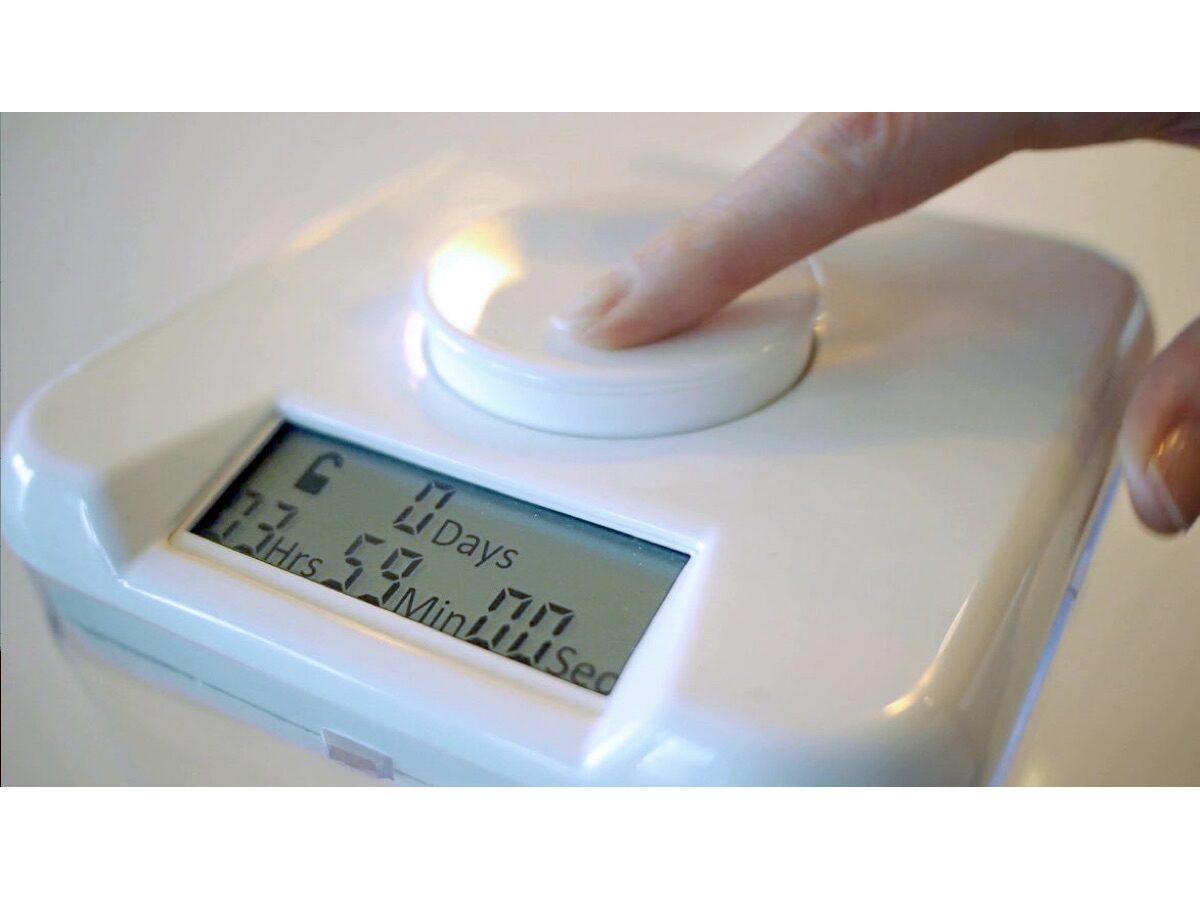
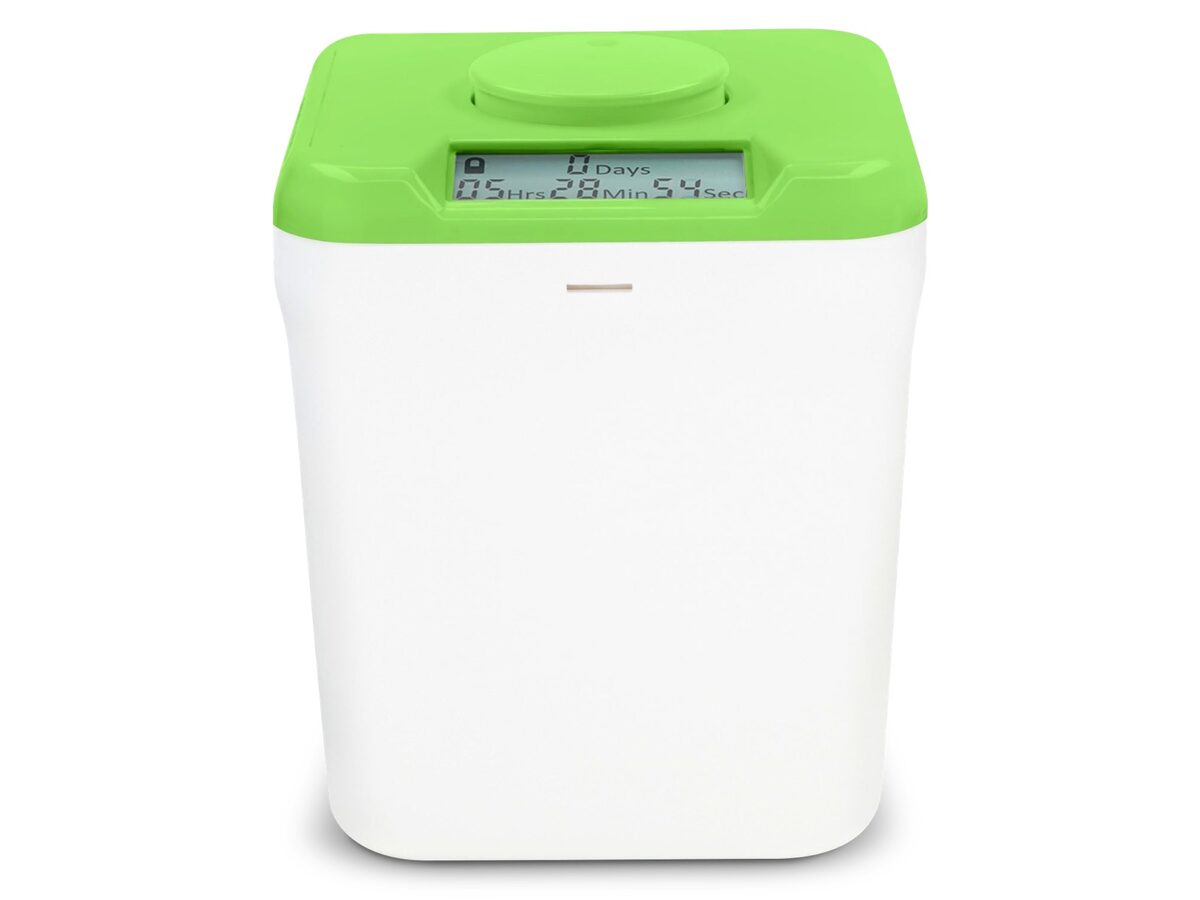
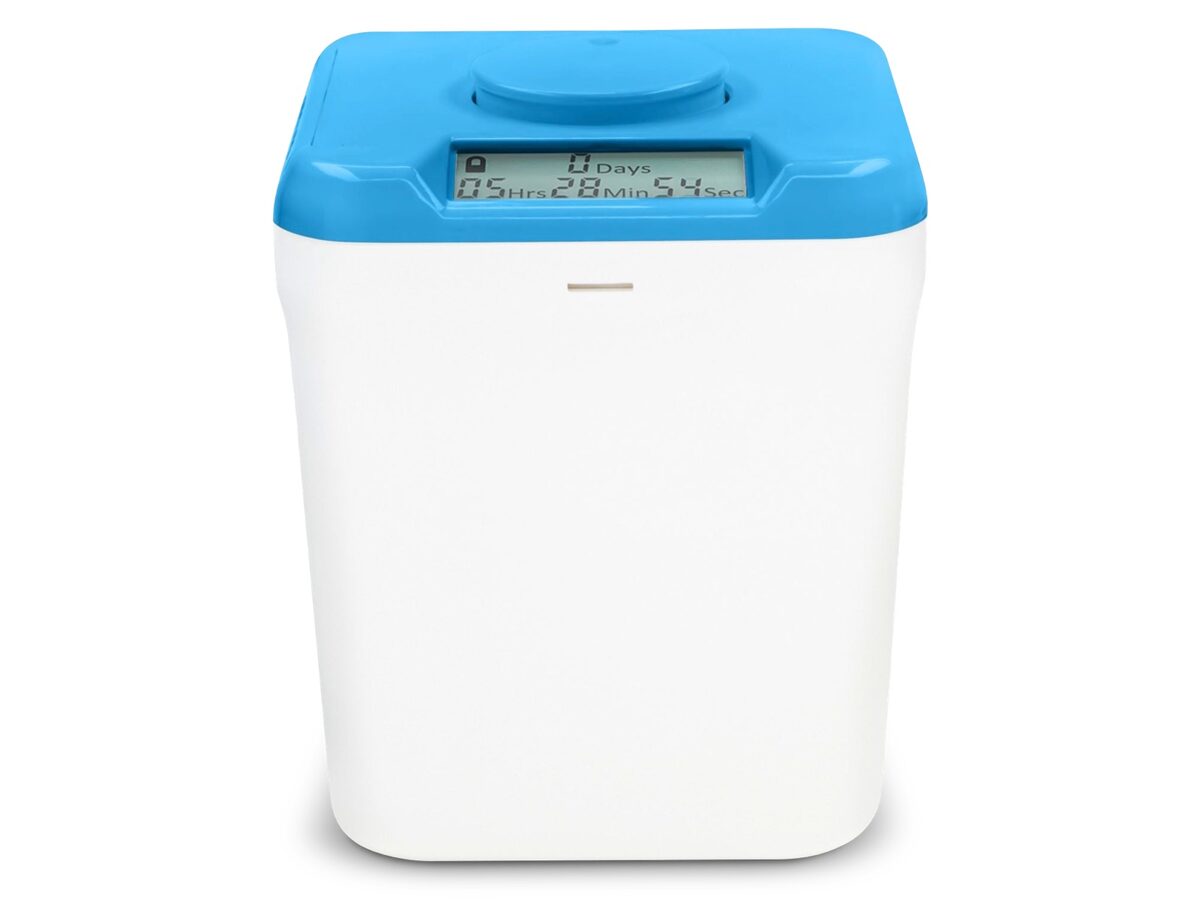
The Kitchen Safe is a plastic container with a timer. Put your phone in it, set a time, and it stays locked until the timer reaches zero. The maker says the time can be set from one minute to ten days and that there are no overrides.
-
kSafe
Kitchen Safe
Timed lock box with no override—phone stays inside until the countdown you set actually hits zero.

kSafe
Kitchen Safe
Timed lock box with no override—phone stays inside until the countdown you set actually hits zero.
Who it suits: People doing high-stakes deep work, like bar exam prep or a manuscript, who can't have the phone in view. It also works for overnight separation.
How it can be bypassed: There's no override on the maker's description. Realistically the only way in early is to break the container, which tells you something about how seriously to take your own bad ideas.
Pricing: It comes in Mini, Medium and XL sizes, and the maker lists Medium as the most popular. Check thekitchensafe.com for current prices.
How to choose an app blocker for ADHD
Rigid blockers can backfire, especially if you get frustrated, turn them off and never turn them back on. Three rules help.
First, don't block communication tools. If a blocker cuts off calls from family or work login codes, you'll dismantle it fast. Use allowlists for essentials.
Second, schedule it before temptation hits. Deciding to block apps when you're already drained rarely works. Set a recurring session in Opal or Freedom that starts at 8:30 AM on its own.
Third, add distance. Putting your phone in another room removes the visual cue entirely. Our guide on how to study without your phone has more.
For more gear, see our distraction blockers list, or read about the dopamine detox myth. If scrolling is the main struggle, start with why you can't stop scrolling.
FAQ
What is the best free app blocker?
On a computer, Cold Turkey Blocker Free handles website blocking and timed sessions. On a phone, one sec's free essentials target muscle-memory scrolling, and Forest's core timer and Deep Focus are free too. Freedom also has a free plan with cross-device blocking.
Can app blockers be uninstalled to bypass them?
Basic ones can, in seconds. Stricter tools try to close that gap: Cold Turkey lists uninstall prevention, Opal's Hard Mode says you can't turn it off during a session, and Brick has a Strict Mode that stops you deleting the app to end a block.
How do I stop overriding my own app limits?
If you keep tapping past the passcode, the friction is too low. Move to something physical. Brick needs the puck to turn apps back on, and a timed lock box like kSafe has no overrides once it's running.
Do app blockers help people with ADHD?
They can, especially when they run automatically, because a manual blocker only works if you remember to turn it on. Scheduled blocks with an allowlist for essential apps are the safest starting point. If your focus problems are severe, talk to a clinician as well.
Sources
- Self-Control in Cyberspace: Applying Dual Systems Theory to a Review of Digital Self-Control Tools (opens in a new tab) – Proceedings of the 2019 CHI Conference on Human Factors in Computing Systems, 2019
- Directing smartphone use through the self-nudge app one sec (opens in a new tab) – Proceedings of the National Academy of Sciences, 2023
- Brain Drain: The Mere Presence of One’s Own Smartphone Reduces Available Cognitive Capacity (opens in a new tab) – Journal of the Association for Consumer Research, 2017
- Freedom Pricing and Plans (opens in a new tab) – Freedom, 2026
- Cold Turkey Blocker (opens in a new tab) – Fortitude Software, 2026
- Cold Turkey Blocker Pricing (opens in a new tab) – Fortitude Software, 2026
- Opal Features and Overview (opens in a new tab) – Opal, 2026
- one sec: Cut your screen time in half (opens in a new tab) – one sec, 2026
- Forest App Features and Plans (opens in a new tab) – Seekrtech, 2026
- Brick Product Details (opens in a new tab) – Brick LLC, 2026
- kSafe Overview and Specifications (opens in a new tab) – Kitchen Safe, 2026